Compiling Inishell
Once you have the source code of Inishell on your computer (either from downloading a source package or from performing a git clone, see Getting Inishell), you can compile it. Please have a look at the Compiling MeteoIO page in order to get links to various compilers and tools as well as more details on the compilation process.
Dependencies
You will need a C++ compiler (such as g++ on GNU/Linux), and the Qt compiler (translating code written for the Qt toolkit to pure C++). Note that Qt 5.9 or later is required.
On GNU/Linux, you can install the g++ compiler or the clang compiler. Then you can install relatively small toolkit to compile Inishell through the command line:
On Ubuntu you may additionally need the following package to make language tools available:Newer operating systems should offer this through their packet manager, but Ubuntu 16 for example offers Qt 5.5 via apt which will be too old and you will need to fetch Qt manually. For reference and as an example as other distributions follow similar patterns, here are the standard versions of Qt for each Ubuntu releases (LTS stands for Long Term Support):
| Ubuntu Release | Default Qt version | Cmake Version | Gcc Version |
|---|---|---|---|
| 14.04 LTS - Trusty | 5.2.1 | 2.8.12 | 4.8.2 |
| 16.04 LTS - Xenial | 5.5.1 | 3.5.1 | 5.3.1 |
| 18.04 LTS - Bionic | 5.9.5 | 3.10.2 | 7.3 |
| 20.04 LTS - Focal | 5.12.8 | 3.16.3 | 9.3 |
| 22.04 LTS - Jammy | 5.15.3 | 3.22.1 | 11.2 |
| 24.04 LTS - Noble | 5.15.13 | 3.28.3 | 13.2 |
| 24.10 - Oracular | 5.15.15 | 3.30.3 | 14.1 |
| 25.04 - Plucky | 5.15.15 | 3.31.6 | 14.2 |
| 25.10 - Questing | 5.15.17 | 3.31.6 | 15.2 |
You can either compile with Microsoft Visual C++ or a Gnu GCC based compiler (we recommend Code::blocks). If you did not install it for other projects, you also need CMake, but this can be installed with the Qt installer.
- Code::Blocks
- Install Code::blocks, but select the installer without MingW;
- In the Qt installer, choose Qt > Qt xxx > MingW xxx 64 Bits (where "xxx" is the version of Qt or Code::Blocks you choose to install);
- In the Qt installer, also choose Build Tools > MingWxxx > MingW xxx 64-Bits (where "xxx" is the version of MingW you will install);
- Edit the environment variables (from the Windows Settings) and add two paths to the PATH variable: the Qt path (such as "C:\Qt\6.3.0\mingw_64\bin") and the MingW path (such as "C:\Qt\tools\mingw1310_64\bin"). If you already have another version of MingW, make sure these two declarations happen before your other version (so CMake correctly finds the MingW binary provided by Qt).
- Visual C++:
- In the Qt installer, choose Qt > Qt xxx > MSVC 2022 64 Bits (where "xxx" is the version of Qt you choose to install);
- Install the proper Visual C++ compiler (here, version 2022).
You need to install a few dependencies: XCode and Qt
- Install XCode (you can find a list of versions matching different MacOS versions at https://xcodereleases.com/ or in the table below);
- Install the Qt online installer (you can select the open source version: "Downloads for open source users" > "Go open source" > "Download the Qt Online Installer");
- Launch the online installer to install Qt (you will need Qt Core as well as CMake). The following settings are known to work: select "/Applications/Qt" as installation directory, select a "custom installation" with the following components: Qt 6.5.2 (for example, other versions work too) and select macos. Select in the "Developer and designer tools" CMake;
- When Qt has been installed, make sure to add the binary directory of the Qt installation (such as /Applications/Qt/6.5.2/macos/bin to your PATH environment variable:
If compiling on one computer and installing on another one, please also pay attention to the MacOS version that you want to target. This has to be provided in cmake as CMAKE_OSX_DEPLOYMENT_TARGET with the numeric version from the table below (by default, it takes the version of MacOS you are compiling on). Macs from the early 2010's could only be upgraded up to High Sierra. Apple Arm processors are supported starting with Big Sur and require at least XCode 12.2 to generate compatible code (native or fat binaries).
| MacOS name | MacOS version number | Highest available XCode version |
|---|---|---|
| High Sierra | 10.13 | 10.1 |
| Mojave | 10.14 | 11.3.1 |
| Catalina | 10.15 | 12.4 |
| Big Sur | 11 | 13.2.1 |
| Monterey | 12 | 14.2 |
| Ventura | 13 | 15.2 |
| Sonoma | 14 | 16.2 |
| Sequoia | 15 | 26.1 (currently) |
Compiling
from the command line
You have to go into the Inishell directory and then run the following commands:
You can also run ccmake . instead of simply cmake . in order to get a terminal configuration screen that allows to configure several aspects of the compilation.
with a GUI
You can also use cmake-gui (or ccmake in the terminal) in order to configure the compilation process in more details and then have cmake generate a project file for your compiler (g++, visual c++ or clang).
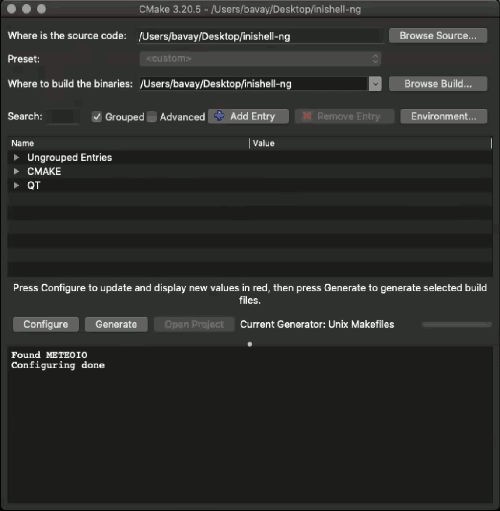
After configuring your compiler kit (e. g. Clang on macOS, Visual C++ on Windows or Code::Blocks on all platforms) you can build the project (please keep in mind that if want to rely on static linking, it requires a static version of Qt). A few more tips:
You can also rely on QT Creator if you want, but this is not mandatory!
Be sure to make the needed DLLs from the Qt installation directory accessible (by e. g. copying them alongside the exe).
If you want to run QT Creator, you'll also need XCode, which can be obtained from Apple with an Apple ID (which does not have to be a developer ID) or directly from https://xcodereleases.com/ (please pick a version of XCode that matches your operating system version!).
If you get code signing errors:
- "The application “Inishell” can’t be opened"
- A pop up window tells you that the application can not run and offers to report it to Apple. If you click on "report", you'll see more details with an error message regarding code signing and you can still cancel sending the report at this point
Then you have to force signing your compiled version for it to be accepted (the codesign tool is shipped with XCode):
Running Inishell
The compiled program can then be found in the bin subdirectory.